Help
Find an answer or follow the quick start.
Quick start
Four steps and clients can book online.
- Step 1
Add services
Name, duration and price. Clients see them when booking.
Read how - Step 2
Add staff
Who works and which services each person does.
Read how - Step 3
Set the schedule
Working hours and days off. Clients only see free times.
Read how - Step 4
Share your booking link
Put it in Instagram, on your website or print the QR code.
Read how
Topics
Journal
Bookings for the day and payments.
Digital appointment journal & resource timelineFront desk command center: staff vs. room views, status colors, week planner, and instant check-out.

- 1Day grid: Staff vs. ResourcesToggle between specialist columns and room/equipment lanes in one click to prevent resource conflicts.
- 2Date picker & status filtersJump across Today, Week overview, or filter appointments by Pending, Confirmed, Arrived, Completed, or No-show.
- 32-click booking & POS checkoutClick any open timeline slot to book a walk-in or complete a visit with retail add-ons.
Good to know: built-in overlap protection locks both specialist and shared resource rooms simultaneously.
Open in ZentroFinancial reports, revenue analytics & daily closeOwner analytics dashboard: revenue by period, average ticket, utilization per specialist, and payment split.

- 1Top KPI executive stripMonitor revenue, completed bookings, average ticket size, and no-show rate in real time.
- 2Payment & retail breakdownTrack card vs. cash totals and compare services revenue against retail add-ons.
Good to know: Financial reports are hidden from standard Specialist logins to protect company revenue privacy.
Open in Zentro
Staff
Team, shifts and access.
Team management, 12-month rosters & role permissionsAdd team members, set working hours and days off, and enforce Owner, Admin, and Specialist roles.

- 1Weekly & 12-month shift matrixSet shifts and days off per specialist — online booking stops offering slots on off-days instantly.
- 2Specialist assignmentLink default rooms, branches, and eligible services per team member.
- 3Role-based access controlSpecialists access their personal schedule (/admin/master), while Owners oversee P&L and exports.
Good to know: shift edits sync live with the Admin calendar and public /book slot availability.
Open in ZentroSpecialist mobile portal (/admin/master)Phone-first daily checklist showing only the specialist's own schedule, guest notes, and one-tap completion.

- 1Focused personal agendaDisplays only the specialist's assigned clients, service times, and room tags cleanly on mobile.
- 2Check-in & private notesMark clients Arrived or Completed in one tap and log session notes straight to their profile.
Good to know: Specialists in this view cannot access company financials or export customer lists.
Open in Zentro
Clients
Client base, reviews and the client’s own page.
Client CRM directory, retention segments & Excel importManage guest profiles, filter VIP & lapsed segments, inspect LTV, and import existing lists from .xlsx / .csv.

- 1Automated retention segmentsInstantly slice your base by VIP, Loyal, New, or Lapsed (45+ days since last visit).
- 2Unified client profileInspect full visit history, specialist notes, tags, LTV spend, and loyalty balance.
- 3One-click Excel / CSV importUpload spreadsheets from another booking system and map names, phones, and emails cleanly.
Good to know: CSV export is restricted by role permissions so staff cannot download your master database.
Open in ZentroClient reviews & reputation managementCollect verified ratings after completed appointments and curate reviews displayed to new visitors.

- 1Post-visit rating promptsGuests receive a 1-tap 5-star review prompt shortly after finishing their visit.
- 2Specialist quality insightsTrack ratings across specialists and moderate public visibility.
Good to know: verified ratings automatically appear next to specialist names in the booking widget.
Open in ZentroClient self-service portal (/account): reschedule & historyEmpower clients to reschedule or cancel visits within your policy window without front-desk calls.
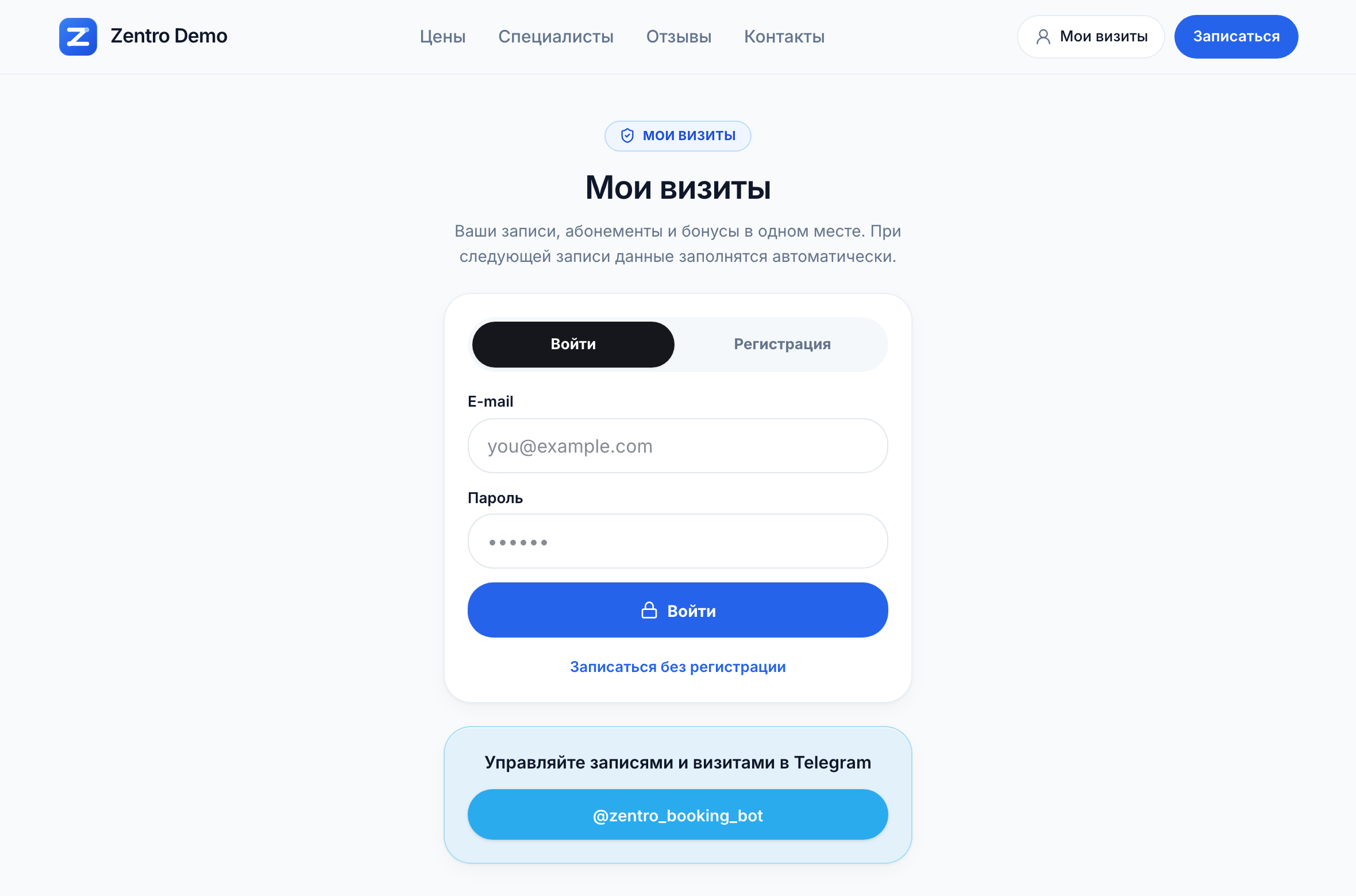
- 1Passwordless client sign-inClients log in quickly using Email OTP or Telegram without remembering passwords.
- 2Self-service rescheduleRespects your configured cancellation lead hours automatically.
Good to know: eliminates up to 40% of repetitive “can I move my appointment?” DM traffic.
Open in Zentro
Online booking
What clients see when they book.
Your Instagram booking link (/book): the client viewAn Apple-crisp mobile sheet with 3 quick paths: Choose specialist, Date & time, or Browse services — 0% fees.
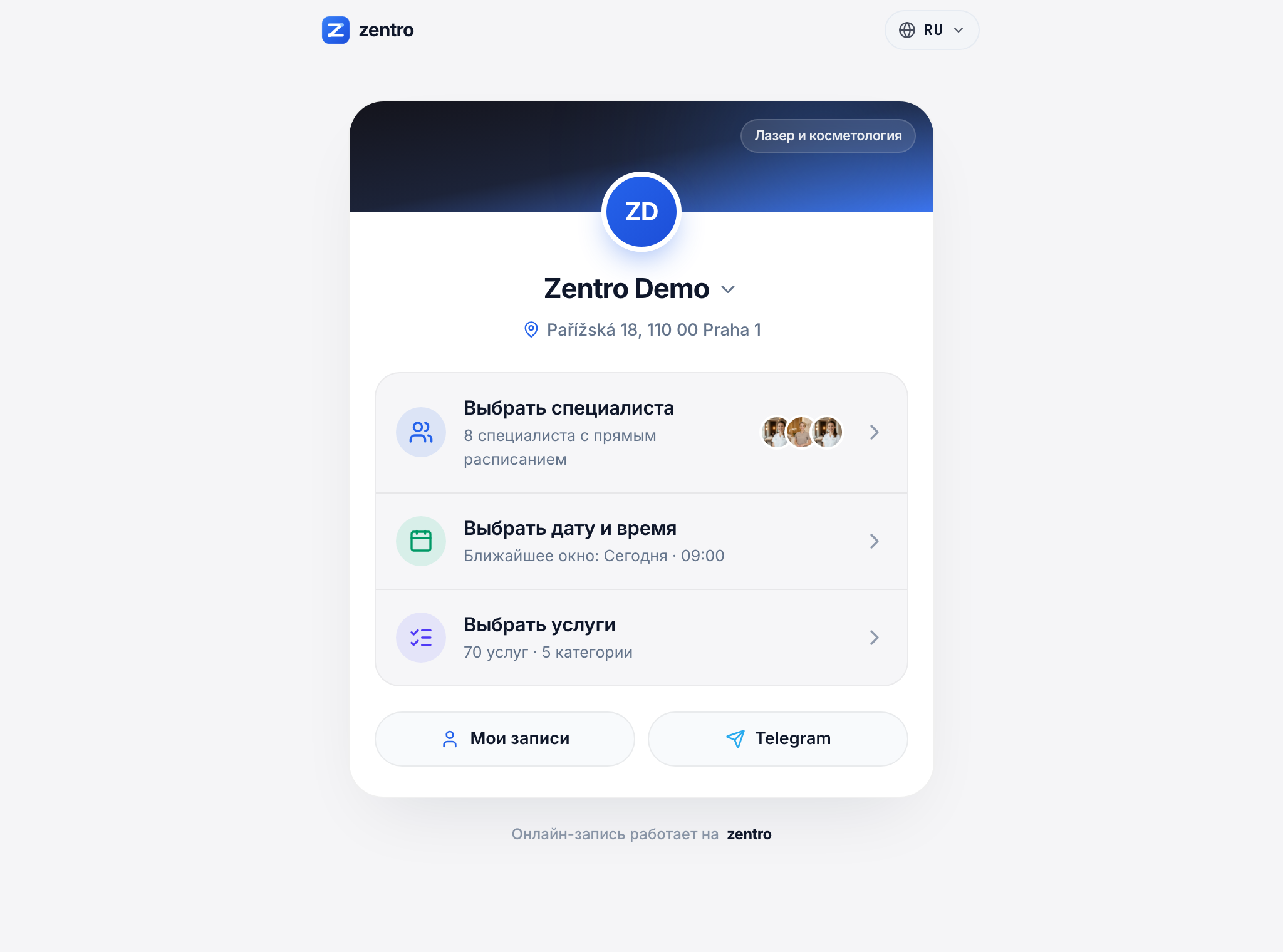
- 1Branded studio card & branch switcherShows your business monogram, title, and address. Tapping the title reveals hours, phone number, and location selector.
- 2Path 1: Book by specialistLists your team for the chosen industry along with their earliest free time slots today.
- 3Path 2: Date & time firstJumps directly to the live month calendar with nearest-slot detection.
- 4Path 3: Browse services + Self-serviceInstant category tabs, search, plus bottom quick links to My Bookings (/account) and Telegram reminders.
Good to know: place /book in your Instagram bio and Google Maps profile to keep 100% of direct bookings commission-free.
Open in Zentro
Settings
Start, services, stock and notifications.
Quick start: launch your business in 5 stepsHow to choose your industry, city, currency, and team so your workspace launches preconfigured.
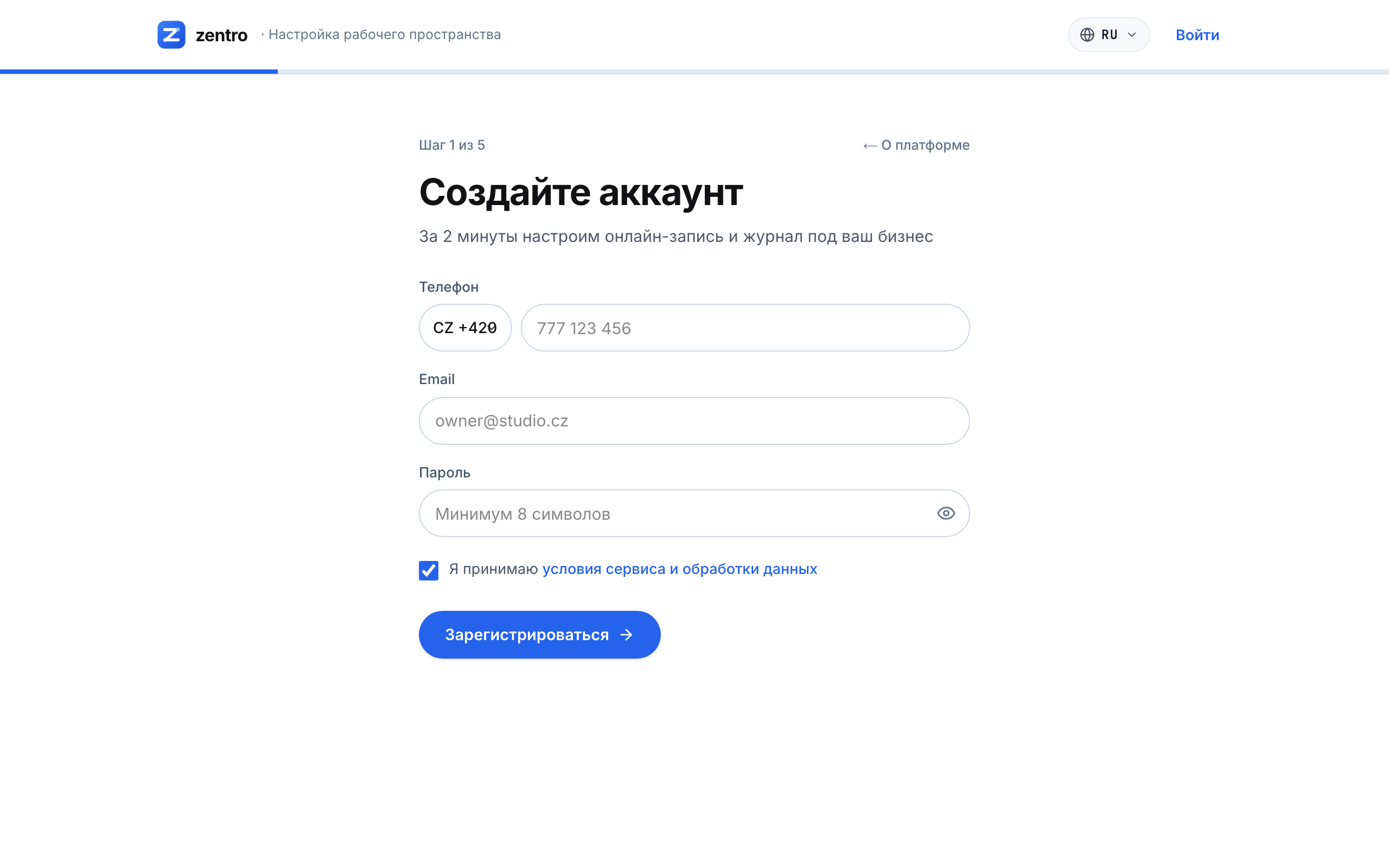
- 1Account & verification codeEnter your phone and business email in step 1. A 6-digit OTP code verifies workspace ownership.
- 2Brand name & locationsType your public company name — clients will see this exact brand header on your booking link.
- 3Industry preset selectionPick Beauty, Medical, Auto Detailing, Education, Fitness, or Home Services to preload tailored catalogs.
- 4Location & currencyCity and country configure your operating timezone and billing currency automatically.
Good to know: toggle “Yes” for self-provider in step 3 if you take appointments yourself so clients can book you directly.
Open in ZentroConfiguring services, durations, rooms & BOM recipesEdit multilingual pricing, assign rooms/equipment, and attach automatic material usage norms per service.

- 1Categories & storefront orderOrganize services into clear tabs that automatically structure your /book catalog.
- 2Duration, pricing & buffer timeConfigure service length, prices across CS/RU/EN, and prep/cleanup buffers.
- 3BOM material usage normsLink consumables directly to services so warehouse stock deducts automatically on visit completion.
Good to know: toggle “Online Bookable” off for internal-only services you prefer only staff to schedule.
Open in ZentroInventory BOM deductions, passes & gift certificatesTrack consumable balances, low-stock alerts, multi-visit session packages, and digital gift cards.

- 1Stock levels & thresholdsTrack units in stock across cabinets and warehouses with visual low-stock warnings.
- 2Packages & gift cardsIssue multi-visit bundles and digital gift certificates with automatic session tracking.
Good to know: inventory deducts automatically the moment a visit is marked Completed.
Open in ZentroWorkspace settings, automated alerts & resource setupCentralized configuration hub for company details, branch addresses, booking lead rules, and alerts.

- 1Branches & business identityUpdate address, phone, Instagram handle, and map links — reflected immediately on /book.
- 2Booking grid rulesAdjust interval step (15/30/60m), booking horizon days, and free cancellation window.
- 3Automated remindersCustomize 24h and 2h appointment reminder templates across Telegram and Email.
Good to know: updating your business name in Settings automatically updates your /book storefront banner.
Open in Zentro
Integrations
Instagram links, QR code and website button.
- Booking link for Instagram, Facebook and TikTokFollowers tap the link in your profile and book. You see how many bookings each network brings.
- QR code for online bookingPrint it at the desk, on the door or on business cards. Clients scan it with the phone camera and book.
- Online booking button for your websiteAdd one line of code. A “Book online” button appears and the booking opens right on your site.
Contact support
Support contacts will appear here soon. Meanwhile, try searching with a different word.